
Flashbird Merchant API Documentation
Welcome to the Flashbird API documentation. The Flashbird API allows you to programmatically access and manage shipments, providing a simple way to integrate Flashbird's services into your application.
Table of Contents
Base URL
All examples in this documentation run against the sandbox environment and work as-is with sandbox credentials (see Sandbox Environment):
https://sandbox.flashbird.ca/api/2024-01/merchant
For production, send an email to andyfang@flashbird.ca to request to enable the Flashbird API for your account. Once enabled, log in to the Flashbird website, navigate to API Authtoken, and use the production base URL and credentials shown there.
Authentication
To interact with the Flashbird API, you must first authenticate to receive an access token. Use this token in subsequent requests.
Obtain Access Token and Refresh Token from Flashbird Merchant Console
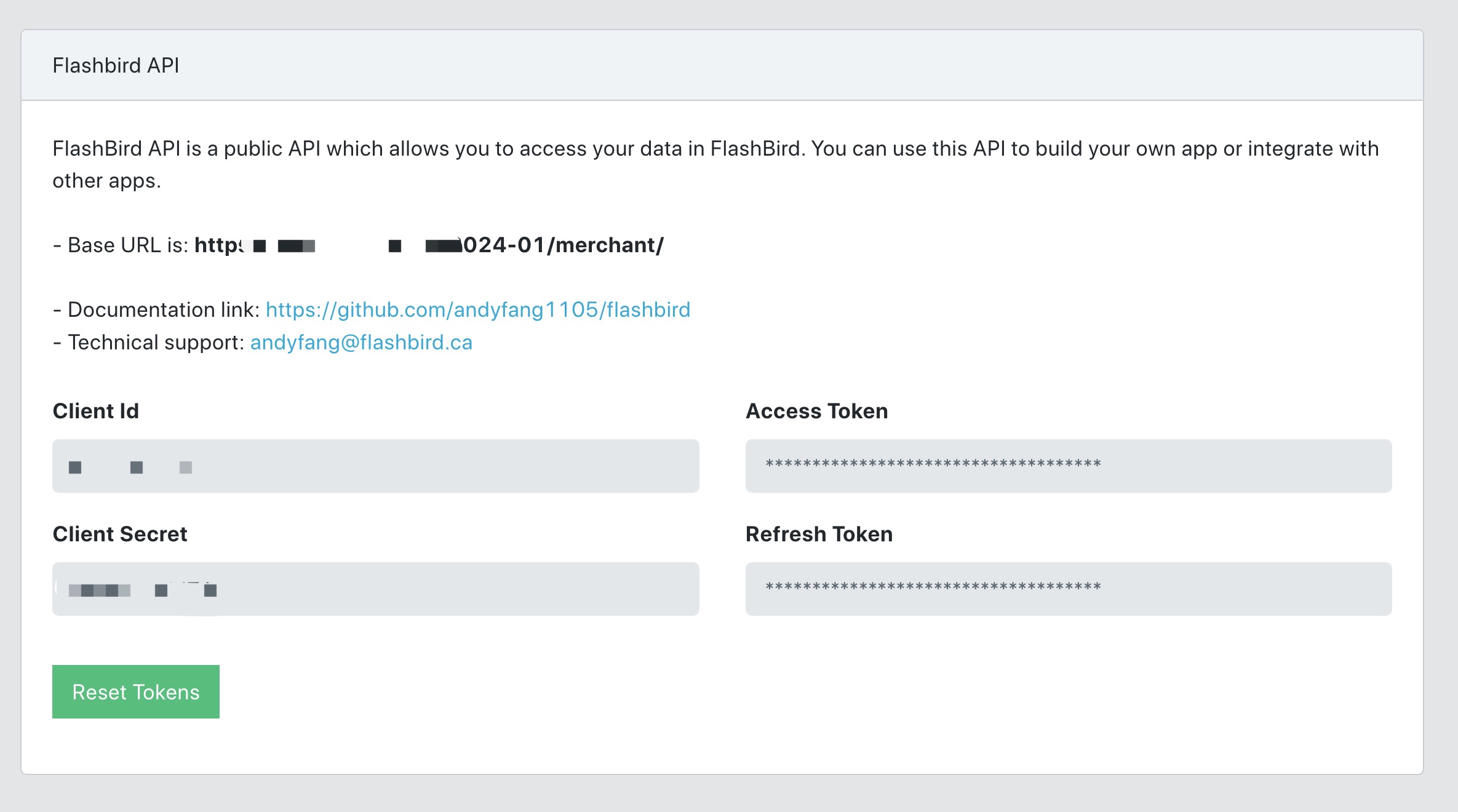
To get your access token and refresh token directly from the Flashbird Merchant Console:
- Log in to the Flashbird Merchant Console.
- Ensure the Merchant API is enabled for your account.
- Click the "Reset Token" button.
- Enter your username and password in the popup dialog.
- Your access token and refresh token will be displayed.
Note:
- The access token is valid for 1 hour. If it expires, you can use the refresh token to obtain a new access token.
- The refresh token is valid for 1 week and will be automatically renewed whenever you use it to obtain a new access token via the method described in the "Obtain New Access Token via Refresh Token" section.
Obtain New Access Token via Refresh Token
If your access token has expired and the API function returns a 401 status code, indicating unauthorized access due to an invalid or expired token, use the refresh_token obtained during the initial authentication to request a new access token.
Endpoint:
POST /authentication/token
Headers:
Content-Type: application/json
Body:
{
  "client_id": "YOUR_CLIENT_ID",
  "client_secret": "YOUR_CLIENT_SECRET",
  "grant_type": "refresh_token",
  "refresh_token": "YOUR_REFRESH_TOKEN"
}
Sample JavaScript Request:
const fetch = require('node-fetch');
const BASE_URL = 'https://sandbox.flashbird.ca/api/2024-01/merchant'; // Sandbox — replace with your production base URL (from the Merchant Console) when going live

const data = {
  client_id: 'mock_client_id',
  client_secret: 'mock_client_secret',
  grant_type: 'refresh_token',
  refresh_token: 'mock_refresh_token'
};

async function refreshAccessToken() {
  try {
    const response = await fetch(`${BASE_URL}/authentication/token`, {
      method: 'POST',
      headers: {
        'Content-Type': 'application/json'
      },
      body: JSON.stringify(data)
    });

    if (!response.ok) {
      throw new Error(`HTTP error! status: ${response.status}`);
    }

    const responseData = await response.json();
    console.log('New Access Token:', responseData.access_token);
    return responseData.access_token;
  } catch (error) {
    console.error('Fetching error:', error);
  }
}

refreshAccessToken();
Response:
A successful response will return a new access_token, the duration it's valid for (expires_in), and the type of token (token_type).
{
  "access_token": "NEW_ACCESS_TOKEN",
  "expires_in": 3600,
  "token_type": "Bearer"
}
Making Authenticated Requests
Once you have the access_token, include it in the Authorization header of your requests:
headers: {
  'Authorization': 'Bearer YOUR_ACCESS_TOKEN'
}
Endpoints
The sections below describe each available endpoint, its method, expected input, and output.
Create a Shipment
This endpoint is used to create a new shipment. It requires details about the sender and receiver, along with specific information about the package.
Endpoint:
POST /shipments
Headers:
{
  "Content-Type": "application/json",
  "Authorization": "Bearer YOUR_ACCESS_TOKEN"
}
Replace YOUR_ACCESS_TOKEN with the actual access token obtained from the authentication process.
Body:
Provide the shipment details in the request body. The following fields are required: name, phone, street, city_or_town, province, post_code, country in both from and to sections, email and phone are optional. The packaging is an array where each item must include at least the weight.
Maximum Parcels Per Shipment: Each merchant account has a configurable maximum number of parcels (packaging entries) per shipment. The default limit is 3. If the packaging array exceeds this limit, the API will return a 400 error. Contact FlashBird to adjust this limit for your account.
In the packaging array:
length, width, height should be specified in centimeters (cm).
weight should be specified in kilograms (kg).
{
  "from": {
    "name": "Alice Smith",
    "phone": "(416) 555-0190",
    "street": "123 Yonge Street",
    "city_or_town": "Toronto",
    "province": "ON",
    "post_code": "M5B 1N8",
    "country": "Canada"
  },
  "to": {
    "name": "Bob Brown",
    "phone": "(416) 555-0132",
    "street": "456 Queen Street West",
    "unit_no": "210",
    "city_or_town": "Toronto",
    "province": "ON",
    "post_code": "M5V 2B7",
    "country": "Canada"
  },
  "packaging": [
    {
      "length": 10,
      "width": 15,
      "height": 20,
      "weight": 5
    }
  ],
  "refno": "1234567",
  "notes": "Notes for delivery instructions",
  "items": "Description of the items",
}
Sample JavaScript Request:
const fetch = require('node-fetch');
const BASE_URL = 'https://sandbox.flashbird.ca/api/2024-01/merchant'; // Sandbox — replace with your production base URL (from the Merchant Console) when going live
const endpoint = 'shipments'; // The endpoint for creating shipments
const accessToken = 'YOUR_ACCESS_TOKEN'; // Replace with your actual access token

const shipmentData = {
  "from": {
    "name": "Alice Smith",
    "phone": "(416) 555-0190",
    "street": "123 Yonge Street",
    "city_or_town": "Toronto",
    "province": "ON",
    "post_code": "M5B 1N8",
    "country": "Canada"
  },
  "to": {
    "name": "Bob Brown",
    "phone": "(416) 555-0132",
    "street": "456 Queen Street West",
    "unit_no": "210",
    "city_or_town": "Toronto",
    "province": "ON",
    "post_code": "M5V 2B7",
    "country": "Canada"
  },
  "packaging": [
    {
      "length": 10,
      "width": 15,
      "height": 20,
      "weight": 5
    }
  ],
  "refno": "1234567"
  "notes": "Notes for delivery instructions",
  "items": "Description of the items",
};

async function createShipment() {
  try {
    const response = await fetch(`${BASE_URL}/${endpoint}`, {
      method: 'POST',
      headers: {
        'Content-Type': 'application/json',
        'Authorization': `Bearer ${accessToken}`
      },
      body: JSON.stringify(shipmentData),
    });

    if (!response.ok) {
      const errorResponse = await response.json();
      throw new Error(`HTTP error! status: ${response.status}, message: ${errorResponse.errors[0].message}`);
    }

    const responseData = await response.json();
    console.log('Response Data:', responseData);
  } catch (error) {
    console.error('Fetching error:', error);
  }
}

createShipment();
Response:
The response will provide details about the success or failure of the shipment creation.
When Successful (http status 200 and rc is 0):
{
  "rc": 0,
  "number": "UNIQUE_SHIPMENT_NUMBER",
  "refno": "YOUR_REFERENCE_NUMBER",
  // 0 = same day
  // 1 = next day
  // 2 = 2 days
  // 3 = more than 2 days
  "transit_time": 0,
  "message": "Successfully created a shipment",
  "timestamp": 1704152543232,
}
When Failed:
Duplicate Reference Number Example:
Fetching error: Error: HTTP error! status: 400, message: Failed to create the shipment due to duplicate Ref No. (1234567) found in shipment 774015246477Out of Service Area Example:
Fetching error: Error: HTTP error! status: 400, message: FSA/Postal Code A8S is out of service areExceeded Max Parcels Example:
Fetching error: Error: HTTP error! status: 400, message: Exceeded maximum number of parcels per shipment (3)
Update a Shipment
This endpoint allows you to update the details of an existing shipment using its unique tracking number.
Endpoint:
PUT /shipments/{shipmentNumber}
Headers:
{
  "Content-Type": "application/json",
  "Authorization": "Bearer YOUR_ACCESS_TOKEN"
}
Replace YOUR_ACCESS_TOKEN with the actual access token obtained from the authentication process.
URL Parameters:
shipmentNumber: The unique tracking number of the shipment to be updated.
Important Conditions:
- Updates are only permissible for shipments in "draft" status.
- Shipments that have been picked up, delivered, or deleted cannot be updated.
- Attempting to update a shipment that is not eligible (not in "draft" status) will result in an error response stating "Shipment not found".
- The
packagingarray must not exceed the merchant's maximum parcels per shipment limit (default: 3). Exceeding this limit will result in a400error.
Body:
Provide the updated shipment details in the request body. The same fields as in the shipment creation are applicable.
{
  "from": {
    "name": "Alice Smith",
    "phone": "(416) 555-0190",
    "street": "123 Yonge Street",
    "city_or_town": "Toronto",
    "province": "ON",
    "post_code": "M5B 1N8",
    "country": "Canada"
  },
  "to": {
    "name": "Bob Brown",
    "phone": "(416) 555-0132",
    "street": "456 Queen Street West",
    "unit_no": "210",
    "city_or_town": "Toronto",
    "province": "ON",
    "post_code": "M5V 2B7",
    "country": "Canada"
  },
  "packaging": [
    {
      "length": 10,
      "width": 15,
      "height": 20,
      "weight": 5
    }
  ],
  "refno": "1234567",
  "notes": "Notes for delivery instructions",
  "items": "Description of the items",
}
Sample JavaScript Request:
const fetch = require('node-fetch');
const BASE_URL = 'https://sandbox.flashbird.ca/api/2024-01/merchant'; // Sandbox — replace with your production base URL (from the Merchant Console) when going live
const accessToken = 'YOUR_ACCESS_TOKEN'; // Replace with your actual access token
const shipmentNumber = '774017844640'; // Replace with the actual shipment number to be updated

const updatedShipmentData = {
  // Include updated shipment data here
};

async function updateShipment() {
  try {
    const response = await fetch(`${BASE_URL}/shipments/${shipmentNumber}`, {
      method: 'PUT',
      headers: {
        'Content-Type': 'application/json',
        'Authorization': `Bearer ${accessToken}`
      },
      body: JSON.stringify(updatedShipmentData),
    });

    if (!response.ok) {
      const errorResponse = await response.json();
      throw new Error(`HTTP error! status: ${response.status}, message: ${errorResponse.errors[0].message}`);
    }

    const responseData = await response.json();
    console.log('Response Data:', responseData);
  } catch (error) {
    console.error('Fetching error:', error);
  }
}

updateShipment();
Response:
- When Successful (http status 200 and rc is 0):
{
  "rc": 0,
  "number": "UPDATED_SHIPMENT_NUMBER",
  "msg": "Shipment updated",
  // 0 = same day
  // 1 = next day
  // 2 = 2 days
  // 3 = more than 2 days
  "transit_time": 0
}
- When Failed:
Fetching error: Error: HTTP error! status: 404, message: Shipment not found
Delete a Shipment
This endpoint allows for the deletion of an existing shipment by using its unique tracking number.
Endpoint:
DELETE /shipments/{shipmentNumber}
Headers:
{
  "Content-Type": "application/json",
  "Authorization": "Bearer YOUR_ACCESS_TOKEN"
}
Replace YOUR_ACCESS_TOKEN with the actual access token obtained from the authentication process.
URL Parameters:
shipmentNumber: The unique identifier of the shipment to be deleted.
Important Conditions:
- Deletion is only permissible for shipments in "draft" status.
- Shipments that have been picked up, delivered, or previously deleted cannot be deleted.
- Attempting to delete a shipment that is not eligible (not in "draft" status) will result in an error response stating "Shipment not found".
Sample JavaScript Request:
const fetch = require('node-fetch');
const BASE_URL = 'https://sandbox.flashbird.ca/api/2024-01/merchant'; // Sandbox — replace with your production base URL (from the Merchant Console) when going live
const accessToken = 'YOUR_ACCESS_TOKEN'; // Replace with your actual access token
const shipmentNumber = '774012744635'; // Replace with the actual shipment number to be deleted

async function deleteShipment() {
  try {
    const response = await fetch(`${BASE_URL}/shipments/${shipmentNumber}`, {
      method: 'DELETE',
      headers: {
        'Content-Type': 'application/json',
        'Authorization': `Bearer ${accessToken}`
      },
    });

    if (!response.ok) {
      const errorResponse = await response.json();
      throw new Error(`HTTP error! status: ${response.status}, message: ${errorResponse.errors[0].message}`);
    }
    console.log('Shipment deleted successfully');
  } catch (error) {
    console.error('Fetching error:', error);
  }
}

deleteShipment();
Response:
The response will confirm the success or failure of the deletion request.
-When Successful:(http status 204)
The request will complete without errors, and the response body will typically be empty.
-When Failed:
Fetching error: Error: HTTP error! status: 404, message: Shipment not found
Get Tracking
This endpoint retrieves detailed tracking information for a specific shipment. By providing the unique tracking number, you can obtain the current status, delivery information, and the complete log of tracking events associated with the shipment.
Endpoint:
GET /trackings/{shipmentNumber}
Headers:
{
  "Content-Type": "application/json",
  "Authorization": "Bearer YOUR_ACCESS_TOKEN"
}
Replace YOUR_ACCESS_TOKEN with the actual access token obtained from the authentication process.
URL Parameters:
shipmentNumber: The unique identifier of the shipment for which tracking information is being requested.
Sample JavaScript Request:
const fetch = require('node-fetch');
const BASE_URL = 'https://sandbox.flashbird.ca/api/2024-01/merchant'; // Sandbox — replace with your production base URL (from the Merchant Console) when going live
const accessToken = 'YOUR_ACCESS_TOKEN'; // Replace with your actual access token
const shipmentNumber = '776079999005'; // Live sandbox fixture (delivered); replace with your own shipment number

async function getTracking() {
    try {
        const response = await fetch(`${BASE_URL}/trackings/${shipmentNumber}`, {
            method: 'GET',
            headers: {
                'Content-Type': 'application/json',
                'Authorization': `Bearer ${accessToken}`,
            }
        });

        if (!response.ok) {
            const errorResponse = await response.json();
            throw new Error(`HTTP error! status: ${response.status}, message: ${errorResponse.errors[0].message}`);
        }

        const responseData = await response.json();
        console.log('Response Data:', responseData);
    } catch (error) {
        console.error('Fetching error:', error);
    }
}

getTracking();
Response: The response will provide detailed tracking information about the shipment.
- When Successful:
{
  number: '776079999005',
  isDelivered: 1,
  images: [
    {
      type: 'delivered',
      url: 'https://flashbird.s3.us-west-2.amazonaws.com/driver/7e2e1865-51b0-4c06-a6bd-ad2c2f4e3c501706501069430-65b723bae0ec7559e2da2878.jpeg?AWSAccessKeyId=AKIAWCK7U6RSCK6STQI3&Expires=1706502317&Signature=aPGZ2hO507dFlUGsDsq9Mzv7rA8%3D'
    },
    {
      type: 'signature',
      url: 'https://flashbird.s3.us-west-2.amazonaws.com/driver/6325effd-30ea-42de-8981-7de1ebed41e91706501086923-65b723bae0ec7559e2da2878.jpeg?AWSAccessKeyId=AKIAWCK7U6RSCK6STQI3&Expires=1706502317&Signature=HjtUQWxLimLCZ9eikjjWVGPuSmg%3D'
    }
  ],
  logs: [
    { message: 'Shipment created', time: 1706501003768 },
    { message: 'Picked up by FlashBird', time: 1706501042411 },
    { message: 'Out for delivery', time: 1706501050859 },
    { message: 'Parcel delivered', time: 1706501093372 }
  ],
  dateOfBirth: '1/31/2000'
}
Fields Description:
number: The unique tracking number of the shipment.isDelivered: Indicates the delivery status of the shipment. 1 for delivered, 0 for not delivered.images: An array of image objects related to the shipment. Each object may contain:type: The type of image, such as 'delivered' or 'signature'.url: A temporary URL for the image. It's recommended to save the image to your server if needed, as these URLs are temporary.logs: An array detailing the tracking history of the shipment. Each log entry contains:message: A text description of the tracking event.time: The timestamp of when the event occurred.dateOfBirth: An optional field that indicates the date of birth associated with the shipment. Format: mm/dd/yyyy.When Failed: If the tracking information cannot be retrieved (e.g., shipment not found, due to invalid shipment number, lack of permissions, or other issues), the response will include details about the failure.
Create Shipment Labels
This endpoint is used for generating shipping labels for one or more shipments. You need to provide an array of shipment numbers, and the API will return the corresponding label data.
Endpoint:
POST /labels
Headers:
{
  "Content-Type": "application/json",
  "Authorization": "Bearer YOUR_ACCESS_TOKEN"
}
Replace YOUR_ACCESS_TOKEN with the actual access token obtained from the authentication process.
Body: Send an array of shipment numbers for which you need to create labels.
{
  "numbers": ["776079999001"]
}
Replace the array elements with the actual shipment numbers.
Sample JavaScript Request:
const fetch = require('node-fetch');
const BASE_URL = 'https://sandbox.flashbird.ca/api/2024-01/merchant'; // Sandbox — replace with your production base URL (from the Merchant Console) when going live
const accessToken = 'YOUR_ACCESS_TOKEN'; // Replace with your actual access token
const endpoint = 'labels'; // The endpoint for creating labels
const shipmentNumbers = ['776079999001', '776079999002']; // Live sandbox fixtures; replace with your own shipment numbers

async function createLabels() {
    try {
        const response = await fetch(`${BASE_URL}/${endpoint}`, {
            method: 'POST',
            headers: {
                'Content-Type': 'application/json',
                'Authorization': `Bearer ${accessToken}`,
            },
            body: JSON.stringify({ numbers: shipmentNumbers }),
        });

        if (!response.ok) {
            const errorResponse = await response.json();
            throw new Error(`HTTP error! status: ${response.status}, message: ${errorResponse.errors[0].message}`);
        }

        const responseData = await response.json();
        console.log('Response Data:', responseData);
    } catch (error) {
        console.error('Fetching error:', error);
    }
}

createLabels();
Response: Upon successful creation, the response will include the labels for the specified shipments.
- When Successful: The response will include the label data in base64 format.
JVBERi0xLjMKJf////8KMTAgMCBvYmoKPDwKL1R5cGUgL0V4dEdTdGF0ZQovY2EgMQovQ0EgMQo+PgplbmRvYmoKMTMgMCBvYmoKPDwKL1R5cGUgL0V4dEdTdGF0ZQovQ0EgMQo+PgplbmRvYmoKMTQgMCBvYmoKPDwKL1R5cGUgL0V4dEdTdGF0ZQovY2EgMQo+PgplbmRvYmoKOSAwIG9iago8PAovVHlwZSAvUGFnZQovUGFyZW50IDEgMCBSCi9NZWRpYUJveCBbMCAwIDI4OCA0MzJdCi9Db250ZW50cyA3IDAgUgovUmVzb3VyY2VzIDggMCBSCj4+CmVuZG9iago4IDAgb2JqCjw8Ci9Qcm9jU2V0IFsvUERGIC9UZXh0IC9JbWFnZUIgL0ltYWdlQyAvSW1hZ2VJXQovRXh0R1N0YXRlIDw8Ci9HczEgMTAgMCBSCi9HczIgMTMgMCBSCi9HczMgMTQgMCBSCj4+Ci9Gb250IDw8Ci9GMSAxMSAwIFIKL0YyIDEyIDAgUgo+PgovWE9iamVjdCA8PAovSTEgNSAwIFIKPj4KPj4KZW5kb2JqCjcgMCBvYmoKPDwKL0xlb....
- When Failed: If the labels cannot be created (e.g., due to invalid shipment numbers, lack of permissions, or other issues), the response will include details about the failure.
Create a Pickup
This endpoint is used to schedule a pickup for one or more shipments. You need to provide the contact details of the person or company from where the shipment will be picked up. This includes name, company, phone number, email, address, and postal code.
Endpoint:
POST /pickups
Headers:
{
  "Content-Type": "application/json",
  "Authorization": "Bearer YOUR_ACCESS_TOKEN"
}
Replace YOUR_ACCESS_TOKEN with the actual access token obtained from the authentication process.
Body: Include the details of the contact for pickup in the request body.
{
  "contact": {
    "name": "John Doe",
    "company": "ABC Company",
    "phone": "1234567890",
    "email": "johndoe@example.com",
    "street": "123 Main Street",
    "unit_no": "24",
    "city_or_town": "Toronto",
    "province": "ON",
    "country": "Canada",
    "post_code": "M5V 2B7"
  }
}
Replace the details with the actual information for the contact.
The contact object in the request body must include essential contact information for the pickup process. Ensure you provide accurate details for the following required fields:
phone: The contact's phone number.email: The contact's email address.street: The street address for pickup.city_or_town: The city or town of the pickup location.province: The province or state of the pickup location.country: The country of the pickup location.post_code: The postal or zip code of the pickup location.
Optional fields such as name, company, and unit_no can also be included for more specific information. Ensure all provided information is up-to-date and accurate to facilitate a smooth pickup process.
Sample JavaScript Request:
const fetch = require('node-fetch');
const BASE_URL = 'https://sandbox.flashbird.ca/api/2024-01/merchant'; // Sandbox — replace with your production base URL (from the Merchant Console) when going live
const accessToken = 'YOUR_ACCESS_TOKEN'; // Replace with your actual access token
const endpoint = 'pickups'; // The endpoint for creating pickups
const pickupData = {
  "contact": {
    "name": "John Doe",
    "company": "ABC Company",
    "phone": "1234567890",
    "email": "johndoe@example.com",
    "street": "123 Main Street",
    "city_or_town": "Toronto",
    "province": "ON",
    "country": "Canada",
    "post_code": "M5V 2B7"
  }
};

async function createPickup() {
    try {
        const response = await fetch(`${BASE_URL}/${endpoint}`, {
            method: 'POST',
            headers: {
                'Content-Type': 'application/json',
                'Authorization': `Bearer ${accessToken}`,
            },
            body: JSON.stringify(pickupData),
        });

        if (!response.ok) {
            const errorResponse = await response.json();
            throw new Error(`HTTP error! status: ${response.status}, message: ${errorResponse.errors[0].message}`);
        }

        const responseData = await response.json();
        console.log('Response Data:', responseData);
    } catch (error) {
        console.error('Fetching error:', error);
    }
}

createPickup();
Response: Upon successful creation, the response will confirm the pickup request and provide details about the scheduled pickup.
- When Successful: The response will include details such as the pickup number and the scheduled date and time.
{
  rc: 0,
  msg: 'Success',
  id: '65b72c1c321e896990b17d22'
}
rc: This field indicates the result code. A value of 0 signifies a successful operation.msg: A short message, typically indicating the status of the request. In successful cases, it usually displays 'Success'.id: This is a unique identifier for the scheduled pickup. It serves as a reference to the specific pickup request and can be used for tracking or managing the pickup later.When Failed: If the pickup cannot be created (e.g., due to invalid contact information, lack of permissions, or other issues), the response will include details about the failure.
Delete a Pickup
This endpoint allows you to delete a previously scheduled pickup using its unique ID.
Endpoint:
DELETE /pickups/{id}
Replace {id} with the actual ID of the pickup you want to delete.
Headers: { "Content-Type": "application/json", "Authorization": "Bearer YOUR_ACCESS_TOKEN" }
Replace YOUR_ACCESS_TOKEN with the actual access token obtained from the authentication process.
JavaScript Function to Delete a Pickup:
const fetch = require('node-fetch');
const BASE_URL = 'https://sandbox.flashbird.ca/api/2024-01/merchant'; // Sandbox — replace with your production base URL (from the Merchant Console) when going live
const accessToken = 'YOUR_ACCESS_TOKEN'; // Replace with your actual access token
const endpoint = 'pickups'; // The endpoint for deleting pickups

async function deletePickup(endpoint, id, accessToken) {
    try {
        const response = await fetch(`${BASE_URL}/${endpoint}/${id}`, {
            method: 'DELETE',
            headers: {
                'Content-Type': 'application/json',
                'Authorization': `Bearer ${accessToken}`,
            }
        });

        if (!response.ok) {
            const errorResponse = await response.json();
            throw new Error(`HTTP error! status: ${response.status}, message: ${errorResponse.errors[0].message}`);
        }
        console.log('Response Status:', response.status);
    } catch (error) {
        console.error('Fetching error:', error);
    }
}

// Example usage:
deletePickup(endpoint, 'PICKUP_ID', accessToken).then(() => console.log('API call completed.'));
Response:
The response will indicate the status of the pickup deletion request.
Successful Deletion: The server will respond with a 204 No Content status, indicating that the pickup was successfully deleted.
Failed Deletion: If the pickup ID is not found, invalid or other failures, check ${response.status} and ${errorResponse.errors[0].message} for more details.
Get All Pickups
- This endpoint provides a list of all the pickups scheduled under your account.
- It's useful for tracking and managing multiple pickups, allowing you to get an overview of all scheduled, ongoing, or past pickup activities.
Endpoint:
GET /pickups
Headers:
{
  "Content-Type": "application/json",
  "Authorization": "Bearer YOUR_ACCESS_TOKEN"
}
Replace YOUR_ACCESS_TOKEN with the actual access token obtained from the authentication process.
JavaScript Function to Get All Pickups:
const fetch = require('node-fetch');
const BASE_URL = 'https://sandbox.flashbird.ca/api/2024-01/merchant'; // Sandbox — replace with your production base URL (from the Merchant Console) when going live
const accessToken = 'YOUR_ACCESS_TOKEN'; // Replace with your actual access token
const endpoint = 'pickups'; // The endpoint for retrieving all pickups

async function getAllPickups(endpoint, accessToken) {
    try {
        const response = await fetch(`${BASE_URL}/${endpoint}`, {
            method: 'GET',
            headers: {
                'Content-Type': 'application/json',
                'Authorization': `Bearer ${accessToken}`,
            }
        });

        if (!response.ok) {
            const errorResponse = await response.json();
            throw new Error(`HTTP error! status: ${response.status}, message: ${errorResponse.errors[0].message}`);
        }

        const responseData = await response.json();
        console.log('Response Data:', responseData);
    } catch (error) {
        console.error('Fetching error:', error);
    }
}

// Example usage:
getAllPickups(endpoint, accessToken).then(() => console.log('API call completed.'));
Response:
- When Successful: The response will include a list of all pickups available in your account.
{
  "pickups": [
    {
      "id": "pickup_id_1",
      "status": "open",
      "contact": {
        "name": "John Doe",
        "company": "ABC Company",
        "phone": "1234567890",
        "email": "johndoe@example.com",
        "street": "123 Main Street",
        "city_or_town": "Toronto",
        "province": "ON",
        "country": "Canada",
        "post_code": "M5V 2B7"
      },
      "created_at": 1704152668668
    },
    // More pickups...
  ]
}
The response will include details such as pickup ID, contact information, and created_at for each pickup.
- When Failed: If cannot get all pickups (e.g., due to invalid contact information, lack of permissions, or other issues), the response will include details about the failure.
Get Rates
Calculate the total charge amount for a shipment by providing package details, including weight, dimensions, and origin and destination postal codes.
Endpoint:
POST /rates
Headers:
{
  "Content-Type": "application/json",
  "Authorization": "Bearer YOUR_ACCESS_TOKEN"
}
Replace YOUR_ACCESS_TOKEN with the actual access token obtained from the authentication process.
Request Body:
The request body must include the sender's and recipient's postal codes and the package's weight and dimensions.
from.post_code and to.post_code are mandatory. packaging should be an array, each element an object including length, width, height (in cm), and weight (in kg).
{
  "from": {
    "post_code": "M5B 1N8"
  },
  "to": {
    "post_code": "L4S 3B4"
  },
  "packaging": [
    {
      "length": 20,
      "width": 25,
      "height": 20,
      "weight": 30
    },
    {
      "length": 10,
      "width": 15,
      "height": 10,
      "weight": 20
    }
  ]
}
Sample JavaScript Function:
Calculate shipping rates by making a POST request to the /rates endpoint with package information.
const fetch = require('node-fetch');
const config = require('./config');

const baseURL = config.baseURL;
const endpoint = 'rates';
const accessToken = config.access_token;

async function getRates(packageInfo) {
    try {
        const response = await fetch(`${baseURL}/${endpoint}`, {
            method: 'POST',
            headers: {
                'Content-Type': 'application/json',
                'Authorization': `Bearer ${accessToken}`,
            },
            body: JSON.stringify(packageInfo),
        });

        if (!response.ok) {
            const errorResponse = await response.json();
            throw new Error(`HTTP error! status: ${response.status}, message: ${errorResponse.errors[0].message}`);
        }

        const responseData = await response.json();
        console.log('Estimated Shipping Rate:', responseData);
    } catch (error) {
        console.error('Error calculating rates:', error);
    }
}

// Example package information
getRates({
    "from": {
        "post_code": "M5B 1N8"
    },
    "to": {
        "post_code": "L4S 3B4"
    },
    "packaging": [
      {
        "length": 20,
        "width": 25,
        "height": 20,
        "weight": 30
      },
      {
        "length": 10,
        "width": 15,
        "height": 10,
        "weight": 20
      }
    ]
}, accessToken).then(() => console.log('API call completed.'));
Response:
On successful calculation, the API returns the estimated shipping rate.
{ "price": 19.5 }
The price is the estimated shipping cost based on the provided package details and current rate calculations, offering dynamic rate calculation directly from your application.
Tracking Webhooks
In addition to polling the Get Tracking endpoint, FlashBird can push tracking updates to your server in real time. Whenever a customer-visible tracking event occurs (shipment created, picked up, out for delivery, delivered, etc.), FlashBird sends an HTTP POST to your registered callback URL.
Registering a Callback URL
Set your callback URL in the FlashBird Merchant Console (API Authtoken page), or contact andyfang@flashbird.ca to have it configured. When a callback URL is registered, a webhook secret is generated for your account. Both are shown alongside your API credentials in the Merchant Console, and the secret is also returned by the API credentials endpoint as trackingWebhookSecret.
Your endpoint must:
- Accept
POSTrequests with a JSON body (Content-Type: application/json) - Respond with a
2xxstatus code within 10 seconds. Any other response (or a timeout) is treated as a failed delivery and retried.
Webhook Payload
Every webhook has the same envelope:
{
  "event": "trackingUpdate",
  "data": {
    "number": "774013244625",
    "status": "delivered",
    "eventTime": 1705867447106,
    "isDelivered": 1,
    "images": [
      {
        "type": "delivered",
        "url": "https://flashbird.s3.us-west-2.amazonaws.com/driver/....jpeg"
      },
      {
        "type": "signature",
        "url": "https://flashbird.s3.us-west-2.amazonaws.com/driver/....jpeg"
      }
    ],
    "logs": [
      { "message": "Shipment created", "time": 1704152668668 },
      { "message": "Picked up by FlashBird", "time": 1704153477466 },
      { "message": "Out for delivery", "time": 1705475445880 },
      { "message": "Parcel delivered", "time": 1705867447106 }
    ]
  }
}
Fields Description:
event: AlwaystrackingUpdate.data.number: The shipment tracking number (12 digits).data.status: Machine-readable status of the event that triggered this webhook. One of:
| Status | Meaning |
|---|---|
created | Shipment created / label generated |
picked_up | Picked up by FlashBird |
in_transit | Moving through the FlashBird network (sorting facility arrival, inter-city transit) |
out_for_delivery | On a vehicle for final delivery |
delivered | Delivered to the recipient |
failed_attempt | A delivery attempt failed; the shipment will be retried or resolved by dispatch |
returned | Returned to the merchant |
cancelled | Shipment cancelled |
data.eventTime: Epoch milliseconds of the event.data.isDelivered:1if delivered,0otherwise.data.images,data.logs,data.dateOfBirth: Same as the Get Tracking response. Note that image URLs are temporary presigned links that expire within minutes — fetch them promptly if you need the images; treat them as best-effort on retried deliveries.
Request headers:
| Header | Description |
|---|---|
x-flashbird-topic | Always trackingUpdate |
x-flashbird-hmac-sha256 | Base64 HMAC-SHA256 signature of the raw request body (see below) |
x-flashbird-delivery-id | Unique ID for this delivery. Retries of the same event reuse the same ID — use it to deduplicate. |
Verifying the Signature
Every webhook is signed with your account's webhook secret. Compute an HMAC-SHA256 of the raw request body bytes (before any JSON parsing/re-serialization) and compare it with the x-flashbird-hmac-sha256 header:
const crypto = require('crypto');
const express = require('express');
const app = express();

const WEBHOOK_SECRET = 'whsec_...'; // from your Merchant Console / API credentials

app.post('/flashbird/webhook', express.raw({ type: 'application/json' }), (req, res) => {
    const expected = crypto
        .createHmac('sha256', WEBHOOK_SECRET)
        .update(req.body) // raw body buffer
        .digest('base64');

    if (req.headers['x-flashbird-hmac-sha256'] !== expected) {
        return res.status(401).send('invalid signature');
    }

    const payload = JSON.parse(req.body.toString('utf8'));
    console.log('Tracking update:', payload.data.number, payload.data.status);
    res.status(200).send('ok');
});
Reject any request whose signature does not match.
Delivery and Retry Policy
- A delivery is considered successful when your endpoint responds
2xxwithin 10 seconds. - Failed deliveries are retried up to 5 times with increasing delays: 1 minute, 5 minutes, 30 minutes, 2 hours, and 6 hours after the previous attempt.
- Retries re-send the identical body and signature with the same
x-flashbird-delivery-id, so your handler can safely deduplicate. - Webhook ordering is not guaranteed under retries — use
data.eventTimeand thelogsarray (which always contains the full history) as the source of truth for state.
Sending a Test Event
You can trigger a signed sample webhook at any time to verify your receiver:
Endpoint:
GET /utils/test_tracking_event
Optional query parameter callback overrides the registered callback URL for this one test delivery:
GET /utils/test_tracking_event?callback=https://example.com/flashbird/webhook
Uses the same Authorization: Bearer YOUR_ACCESS_TOKEN header as all other endpoints. The response reports the delivery result:
{ "rc": 0, "msg": "Success", "httpStatus": 200, "deliveryId": "6a476b74a3c47ef69b954af6" }
The test event is a fixed sample payload (data.status: "delivered", tracking number 774013244625) signed with your real webhook secret, so you can verify your HMAC validation end to end before going live.
Sandbox Environment
FlashBird provides a sandbox environment for integration development and testing. It runs the same API and webhook pipeline as production against isolated test data — shipments created there are never dispatched or billed.
https://sandbox.flashbird.ca/api/2024-01/merchant
To get sandbox API credentials (client id/secret, access and refresh tokens, and webhook secret), contact andyfang@flashbird.ca. Sandbox accounts come pre-seeded with sample shipments covering every lifecycle state (created, picked_up, in_transit, out_for_delivery, delivered, failed_attempt) so you can exercise the tracking endpoint and webhook handling immediately, and FlashBird can advance a sandbox shipment through its lifecycle on request so you receive the corresponding webhooks in sequence.
Contact
hello@flashbird.ca
+1 888-205-8717
501 Applewood Crescent, Concord, ON L4K 4J3